 Richard's Blog
CodeCraft: a self-hosted coding agent with a software factory






Coding agents have a habit of living in somebody else's cloud: a chat window, a subscription, a model you did not pick. CodeCraft is the opposite. It is a coding agent that runs on your own server, next to your projects, and that you reach from a browser, a phone or a terminal. It talks to any model – Claude, Gemini, OpenRouter, opencode, or a llama.cpp server in your basement – and it works with real tools: files, a shell, a browser, MCP servers, subagents. You decide what it may do, you see what every request costs, and when you close the tab the agent keeps working.
And then there is the part this post spends the most time on: the software factory. It watches the issues on your Git forge and turns them into reviewed, built, accepted and merged changes – agents do the work, you decide at the points that matter.
Repository: git.familie-zink.org/zink/codecraft – source, changelog, releases and issues.
This is a tour of everything CodeCraft does, followed by a complete installation guide for Docker and a reference of the environment variables. Every screenshot was taken in a different theme, because CodeCraft ships with fourteen of them and it seemed a waste not to show them off.
The idea in one screen#
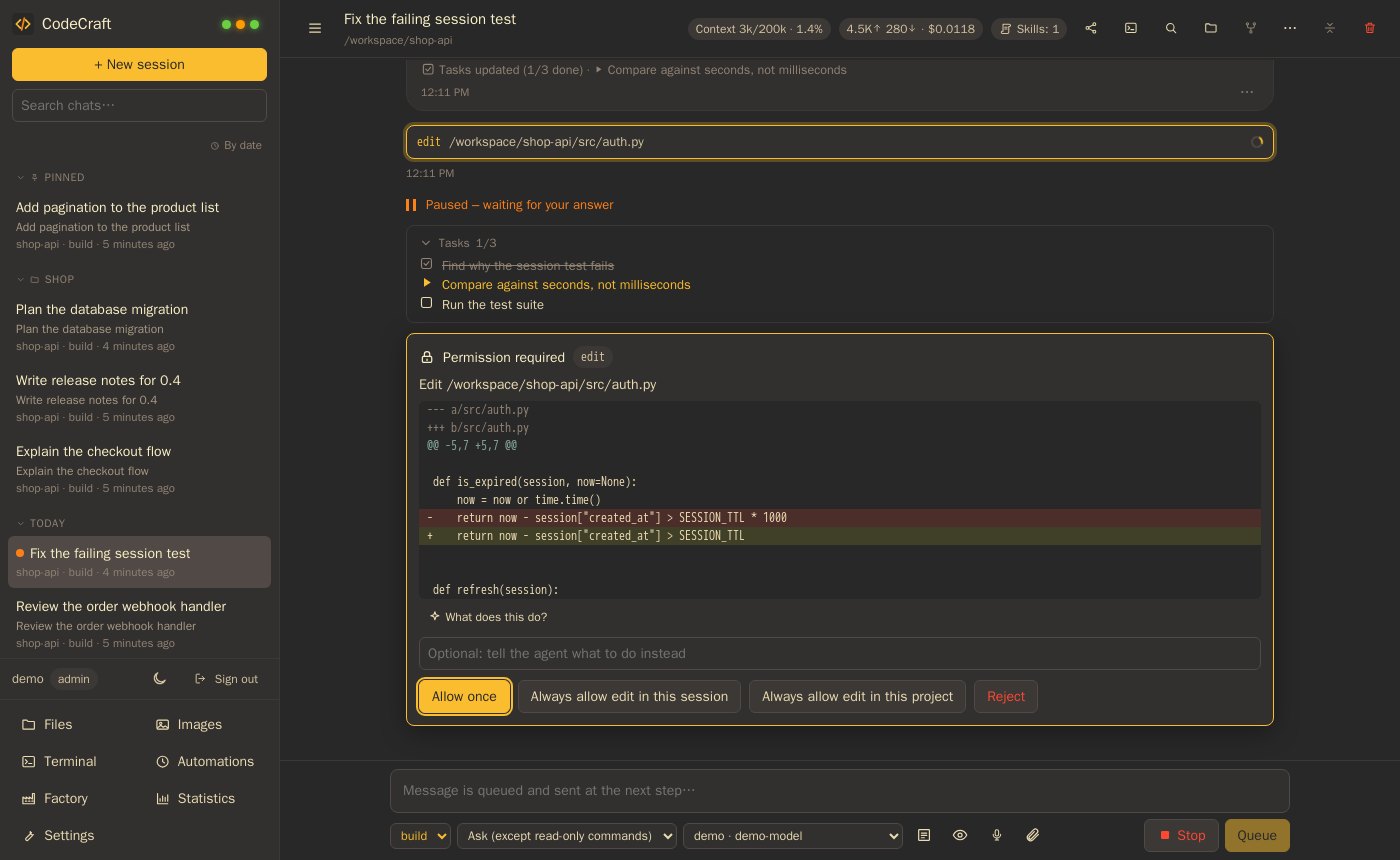
Four things matter, and they are visible in that screenshot:
- Any model. Anthropic natively, plus everything that speaks the OpenAI API. You can mix models inside one chat and give every mode or subagent its own.
- Real tools. Files, shell, web, an interactive browser, LSP diagnostics, task lists, subagents, skills, and every tool of your MCP servers.
- You decide. Anything outside your rules shows up as a card with a diff. Allow once, allow for the session, allow for the project, or reject and tell the agent what to do instead.
- Every token counted. Input, output and cache tokens, speed, and the price of each request – per chat, per day, per model.
How a session works#
CodeCraft runs on your server. The browser, the installed app (it is a PWA) and the terminal client are only windows onto it, so a long task survives a closed laptop.
A new session starts with a question rather than an empty prompt: what do you want to do – build, plan, craft something, model a part for 3D printing, or just chat – and where? In a new folder, in an existing one, or in a Git repository you clone on the spot. Then you say what you want.
From there the loop is the one you know from other coding agents, with a few opinions:
- The agent plans with a task list and works through it, reading code before it changes it.
- Everything outside your rules becomes a card. Edits show their diff. Shell commands show the command. Questions from the agent – and from MCP servers, via elicitation – appear as cards too. On a phone, a push notification brings you back exactly where you are needed.
- The agent delegates. Subagents run in parallel or in the background, on other models and even other hosts, while the main agent continues.
- You can undo. Every change can be reviewed hunk by hunk, rewound to a checkpoint, or isolated in a git worktree from the start.
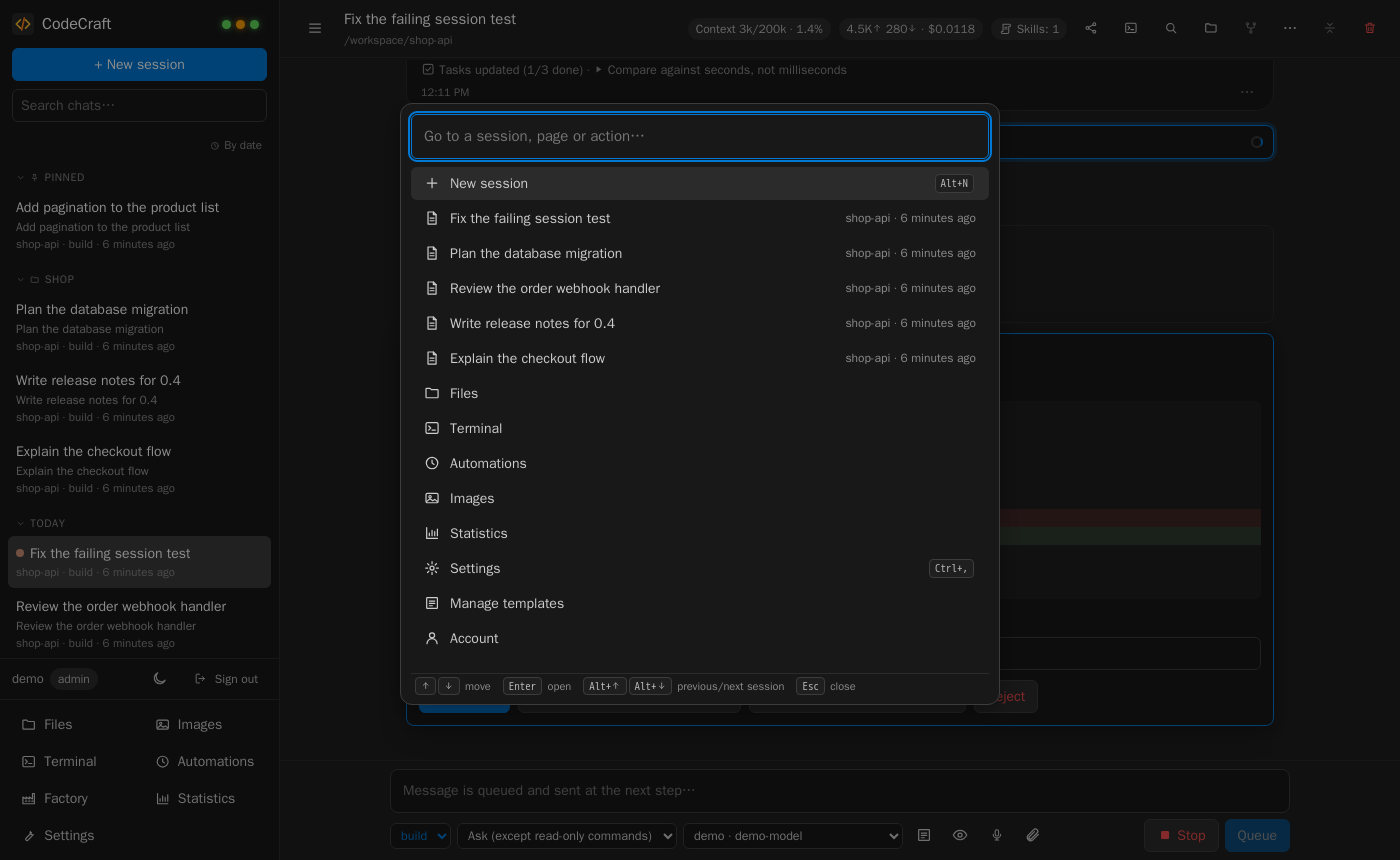
Sessions can be pinned, archived and filed into folders. Ctrl+K opens a command palette that jumps to any chat or page, and prompt templates with placeholders save typing.

Projects keep working the way they do in Claude Code and opencode: AGENTS.md, CLAUDE.md, slash commands in .claude/commands and skills in .claude/skills are picked up automatically. The agent keeps notes about a project in .codecraft/memory.md, and your personal memory applies to every project.
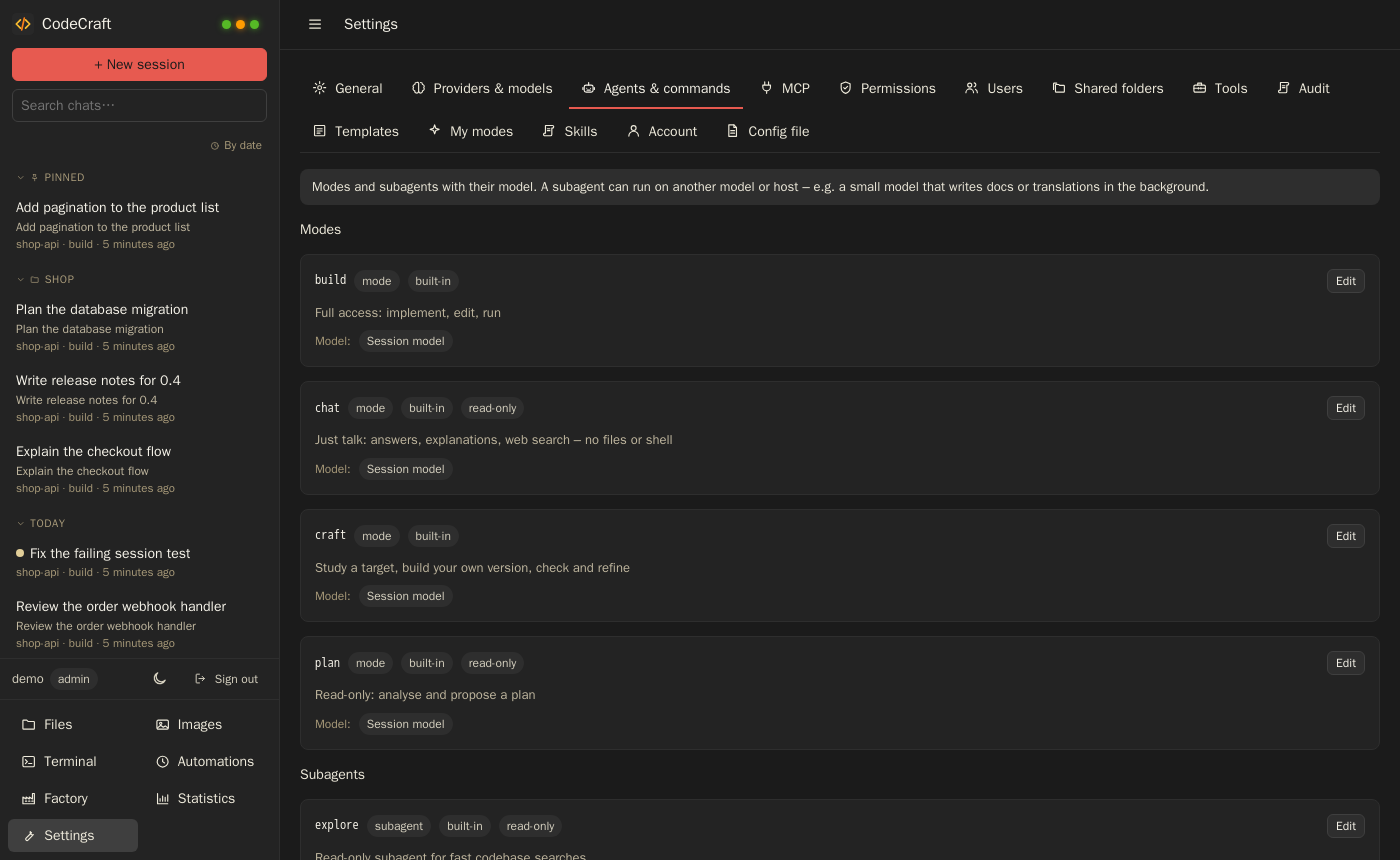
Modes: build, plan, craft – and your own#
A mode is a role for the agent: a prompt, a tool set and, optionally, a fixed model.
| Mode | What it does |
|---|---|
| build | Full access: implement, edit, run. |
| plan | Read-only: investigate, ask, and propose a step-by-step plan. One click switches to build. |
| craft | Study a target – a website, app, game or old program – and build your own version, check it visually and refine. |
| custom | Your own modes and subagents, in the UI, in the config file or as Markdown in .codecraft/agents or .claude/agents. |
Craft mode and re-creating things#
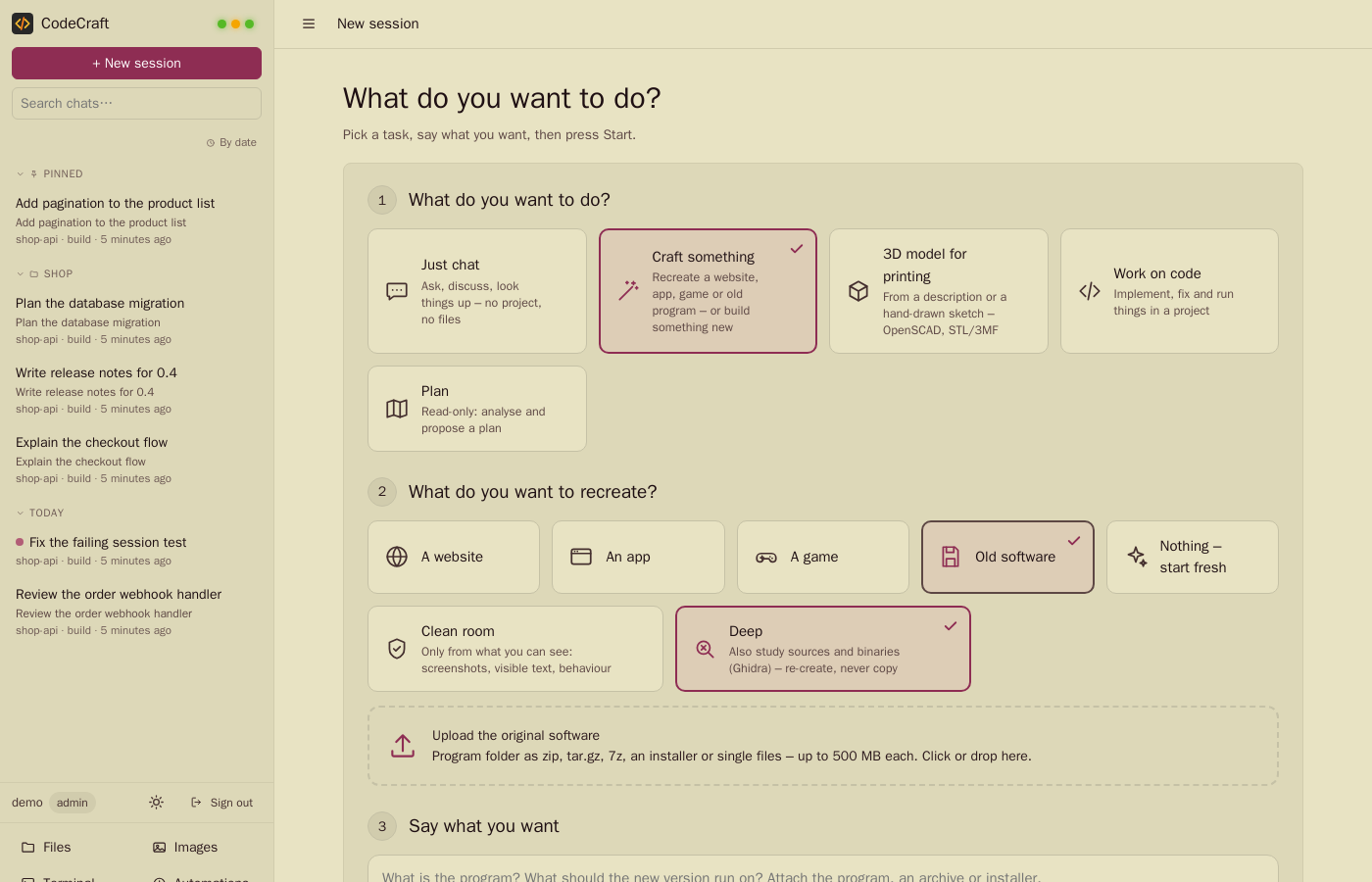
Craft mode deserves a closer look because it behaves differently from the others. You point it at something that exists – a website, an app, a game, an old program – and it studies the target, builds its own version, compares the result and refines it. For websites it captures the page at several screen widths in a headless browser and compares screenshots of the build against the original.
There are two ways to look at a target, and you choose when you start:
- Clean room uses only what a visitor can see: screenshots, visible text, behaviour. The agent may not read the page's source.
- Deep mode may also read sources and, for programs, binaries. For executables it has
binary_info(format, imports, strings) anddecompile, which drives a Ghidra installation that you can install into the data volume with one click. The rule stays the same: decompiled code is a source of understanding, never of code. Everything that gets built is written fresh.
For old programs the project gets a fixed layout – original/ for the files you provide, analysis/ for tool output, docs/ for the documentation, spec/ for the specification, and so on – and the built-in recreate skill walks the agent through inventory and unpacking, analysis, documentation and a recreation proposal. We will meet the same idea again, much bigger, in the factory.
Models and providers#
Every provider is an endpoint with a list of models. Each model can carry a context size, an output limit, a reasoning effort, extra request options and prices per million tokens.

What that buys you in practice:
- Several models per chat. Switch the model at any time, give modes a fixed model, and run subagents on other models – a strong coding model on one GPU host, a small model writing documentation in the background on another.
- Fallback. If a host is unreachable or its budget is used up, the request goes to the model's fallback.
- Concurrency limits.
max_concurrencyper host or model queues requests for servers that process one at a time. The waiting time is shown and never counted as model latency. - Budgets and warnings. Admins get a push notification when the total, a provider's or the image budget reaches the warning share (80 % by default) and when it is used up.
- Prices. Fetch prices fills in prices for OpenRouter and opencode, including long-context tiers and peak-hour factors, which are applied per request.
Tools#
The agent's built-in tools, grouped by what they are for:
| Group | Tools |
|---|---|
| Files | read, write, edit, list, glob, grep |
| Shell | bash with background shells (bash_output, kill_shell) |
| Web | web_fetch, web_search, and an interactive browser that can click, type, evaluate and take screenshots |
| Code intelligence | diagnostics from language servers |
| Planning and delegation | todo_write, ask_user, task (subagents), skill, remember, schedule, change_directory |
| Craft | browser_snapshot, image_compare, craft_phase |
| Creation | generate_image, generate_3d, openscad for parametric CAD |
| Reverse engineering | binary_info, decompile (deep mode and modes that enable them) |
Two details are worth pointing out. The browser tool reaches the internet and localhost, but never addresses in private networks, so a prompt-injected page cannot probe your LAN. And permissions are per tool: allow, ask or deny, with globs such as mcp__*, plus bash_rules for individual commands. Compound shell commands (&&, ;, |) are only auto-allowed when every part is allowed.
Shell commands of non-admin users run in a bubblewrap sandbox: read-only system, only their own folders writable, their own home and process space, and no view of the server's environment. Admins can share extra folders; sessions are private and can be shared read-only.
MCP: bring your own tools#
CodeCraft is an MCP client for both transports – stdio servers it starts itself, and http (Streamable HTTP) servers with headers for authentication. Server questions (elicitation) show up as cards like the agent's own.
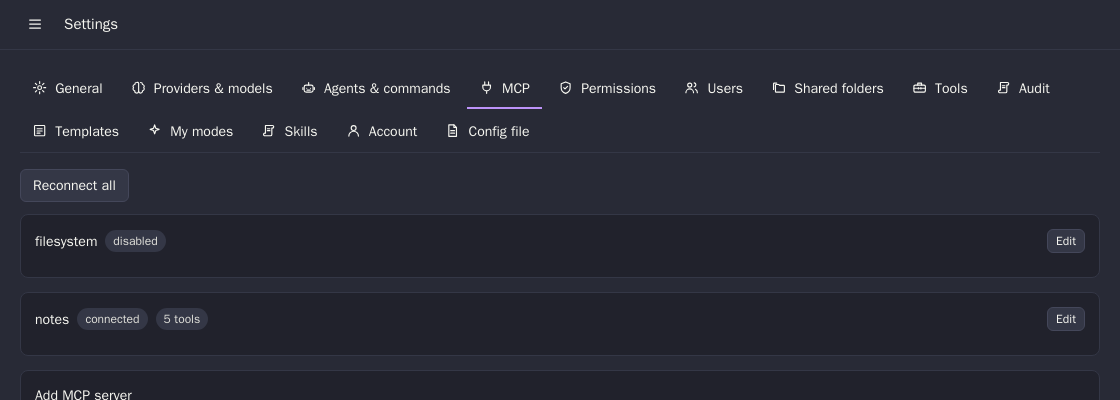
The interesting setting is how tools reach the model. Every tool sent directly costs context on every request, so each server has a Tools for the model switch: send them directly, or load them on demand. In the default automatic mode, servers with more tools than mcp_direct_limit (15) are loaded on demand – the model sees a short list and pulls in the ones it needs. A server can also be restricted to named users, with * for everybody; admins always have access.
A server definition is a few lines of TOML if you prefer files:
[mcp.notes]
type = "http"
url = "https://notes.example.org/mcp"
headers = { Authorization = "Bearer ${NOTES_TOKEN}" }

[mcp.filesystem]
type = "stdio"
command = "npx"
args = ["-y", "@modelcontextprotocol/server-filesystem", "/workspace"]
Skills#
A skill is packaged know-how for a kind of task: a folder with a SKILL.md (name, description, instructions) and any number of further files – checklists, templates, scripts, reference material.
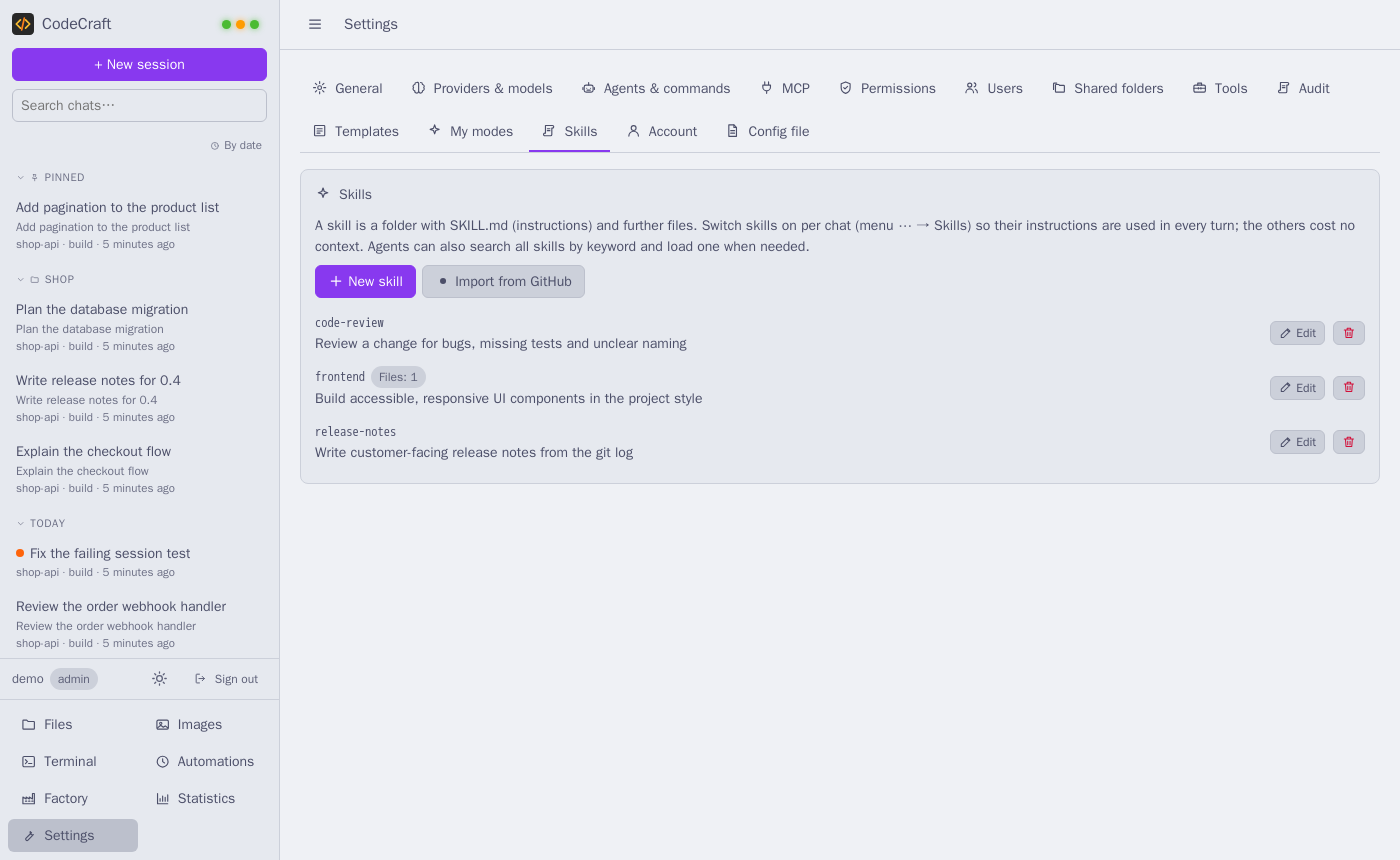
You create skills in Settings → Skills with a small editor that handles several files, or you import them from GitHub: point it at a repository or a folder, it offers every folder that contains a SKILL.md, and you filter and select as many as you like. They are stored per user and live next to the skills of your projects and the built-in ones.
The design question with skills is always context. Hundreds of skills cannot all be in the prompt, so CodeCraft keeps them out of it:
- You switch skills on per chat (menu ⋯ → Skills for this chat). Only those are part of every turn, with their full instructions.
- All others cost almost nothing. Up to 12 are listed by name; a larger library is not listed at all, only counted.
- The agent finds a skill by keyword with the
skilltool and loads it – including its further files, one at a time – when it actually needs it.
A big skills library therefore sits on disk and costs no context until a task calls for one. The factory, as you will see, can even give each phase its own skills.
The terminal client#
codecraft is a full-screen terminal client in the style of Claude Code and opencode – and, once you sign in to your server, a remote control for it. It is one static binary: no runtime, no daemon.
A local agent with the server's brain#
The agent loop, the tools and the chat history run on your machine, in the current folder: read, write, edit, list, glob, grep, bash, a task list, ask_user, subagents (task) and skills. Signed in to a CodeCraft server, it additionally uses what the server knows:
- the server's models, with requests going through the server, so the provider keys never reach your laptop;
- its modes, permission rules, skills and MCP tools – the MCP servers run on the server, and their tools simply appear in the terminal;
- its budgets and statistics: the server counts every request, so cost shows up in the same dashboards as the web interface;
- your theme.
Without a server, a guided setup (/setup) connects Anthropic, OpenAI, Gemini, OpenRouter, opencode or a local model server – Ollama, LM Studio, llama.cpp and vLLM are detected automatically. Both can be mixed: server models are listed as server:provider/model next to your own.
curl -fsSL https://<your-codecraft-server>/cli/install.sh | sh
codecraft login      # server URL, user name, password -> creates an API token for this machine
codecraft            # start in the current folder; /help lists the commands
codecraft login creates a personal API token for this machine, which you can revoke in Settings → Account → API tokens. codecraft update fetches new versions from your server – the terminal tells you when one is available – and codecraft setup re-runs the guided setup.
Everyday use#
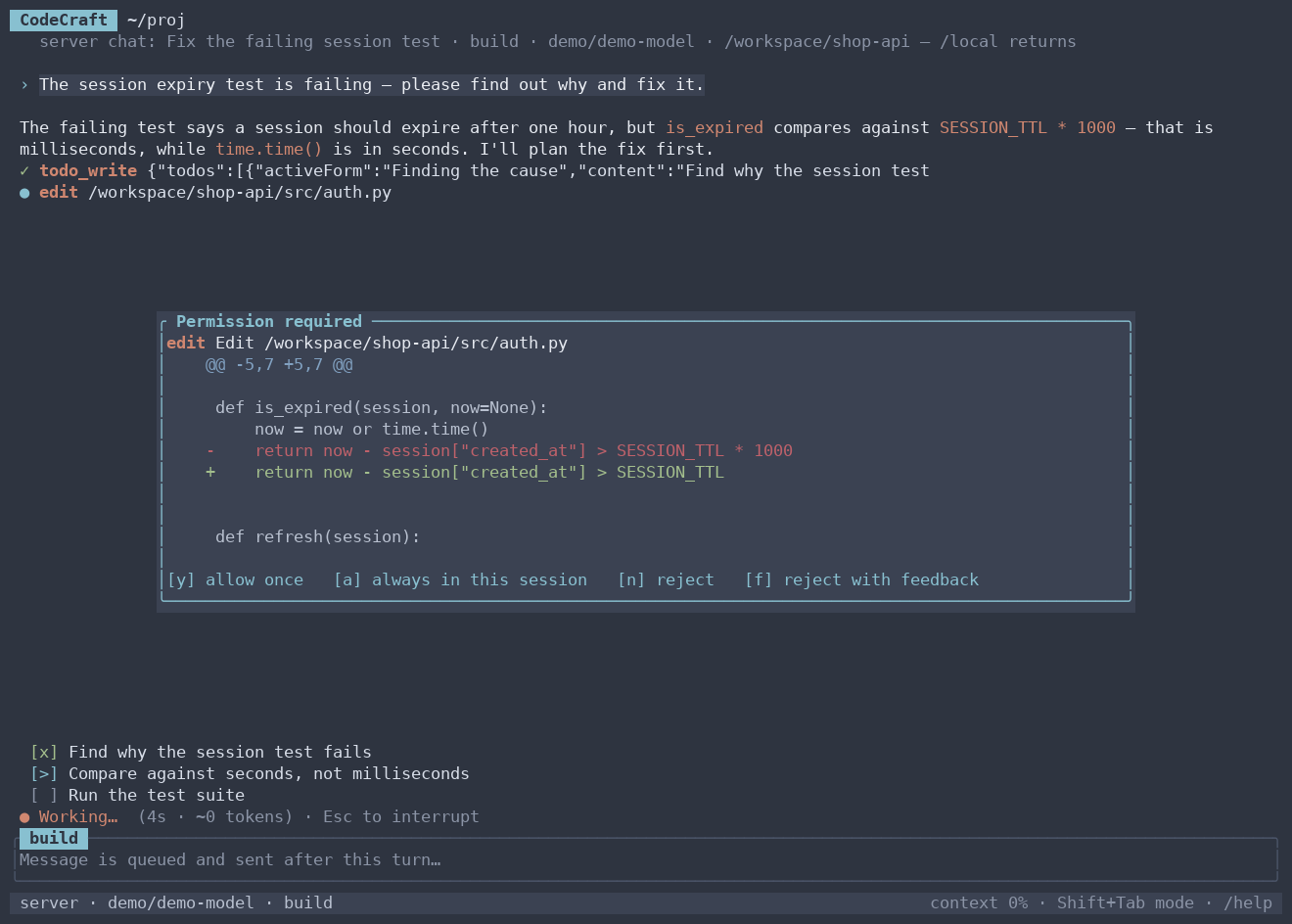
Everything you would expect from the web interface fits into a terminal:
- Modes and permissions. Cycle the mode with Shift+Tab (build, plan, craft, your own).
/permissionsswitches between ask, automatic, accept edits and allow everything – the last one runs unattended on your machine, so it says so. - Sessions. History is kept locally.
codecraft --continuepicks up the last session in this folder,--resume <id>or/resumeany earlier one,/compactsummarizes a long conversation to free context,/newstarts fresh. - Input. Multi-line editing, history with the arrow keys, completion for
/commandsand@files, images by Ctrl+V or@screenshot.png, mouse wheel and PgUp/PgDn for scrolling, a click expands a tool call, Ctrl+O all of them. - Cost.
/coststotals the last 30 days per model; the status line shows context fill and the cost of the session. - Scripts.
codecraft run "update the changelog" --permissions autoruns one prompt without the full-screen interface – usable in cron jobs and CI.
Themes in the terminal#
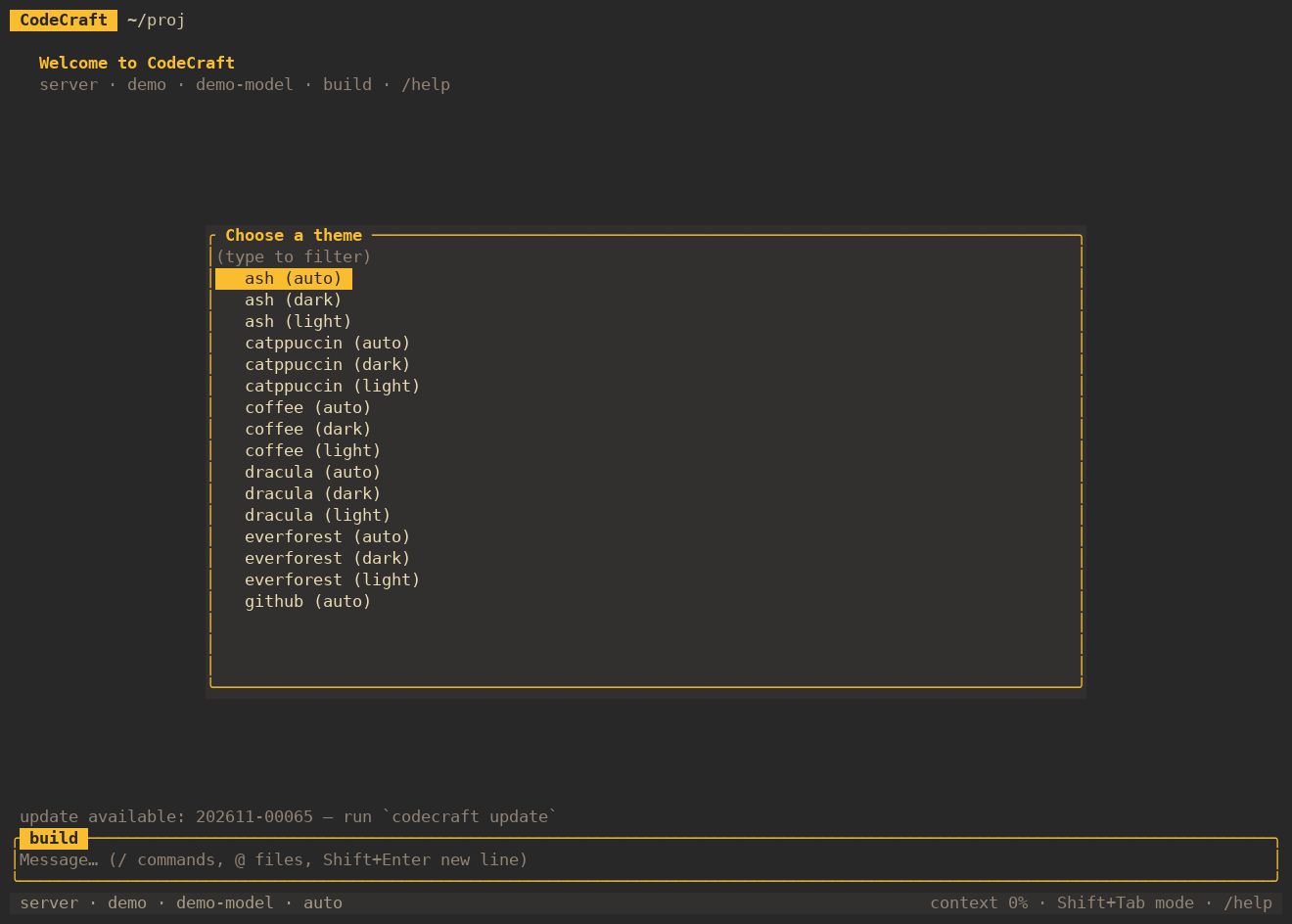
The terminal client does not make do with sixteen ANSI colours. It carries the same palettes as the web interface – every base theme in a dark and a light variant, rendered in true colour. Signed in, it starts with your server theme; /theme opens a picker (ash, catppuccin, coffee, dracula, everforest, github, gruvbox, harbor, kanagawa, nord, one, rosepine, solarized, tintenblau, tokyonight, vscode), each as auto, dark or light, and remembers your choice. Auto follows your terminal's background.
Working with the server#
Here the terminal stops being only a local agent. Signed in, two commands reach into the server itself.
/projects – chats on the server. It lists your chats on the server, working ones first, grouped by the sidebar folders you already use. Open one and the terminal follows it: the agent keeps running on the server, in the server's folder, with the server's files. You read along, send messages, answer permission requests and questions, interrupt with Esc and /compact the chat. A chat that started in the browser, a phone or Telegram can be continued from the terminal – and the other way round. /local takes you back to a chat on your own machine.
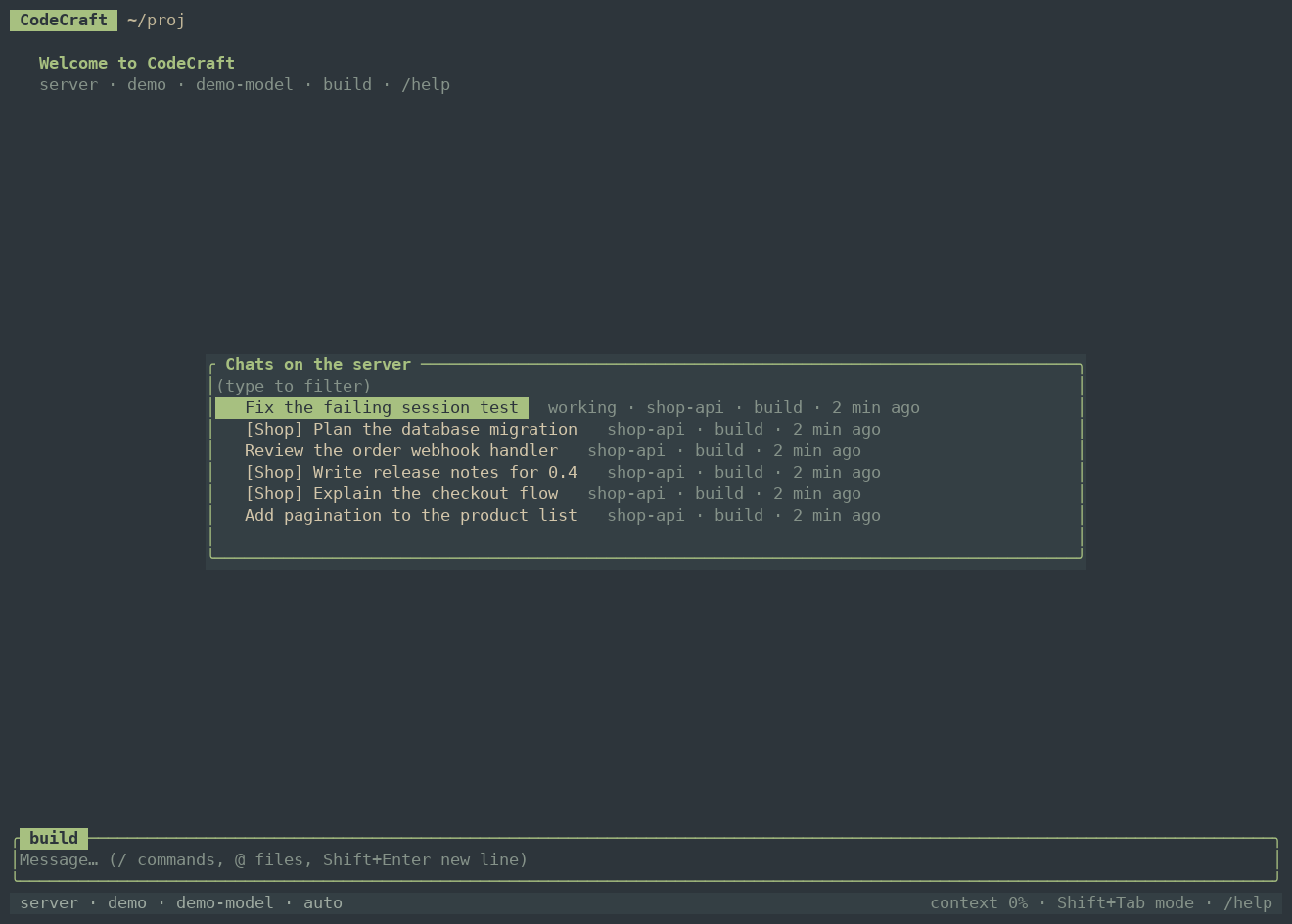
The terminal follows a remote chat by asking the server every second or two, so new messages arrive with a short delay rather than character by character – a deliberate trade for a client that needs nothing but ordinary HTTPS requests.
/factory – the factory board. The software factory has a terminal view too.
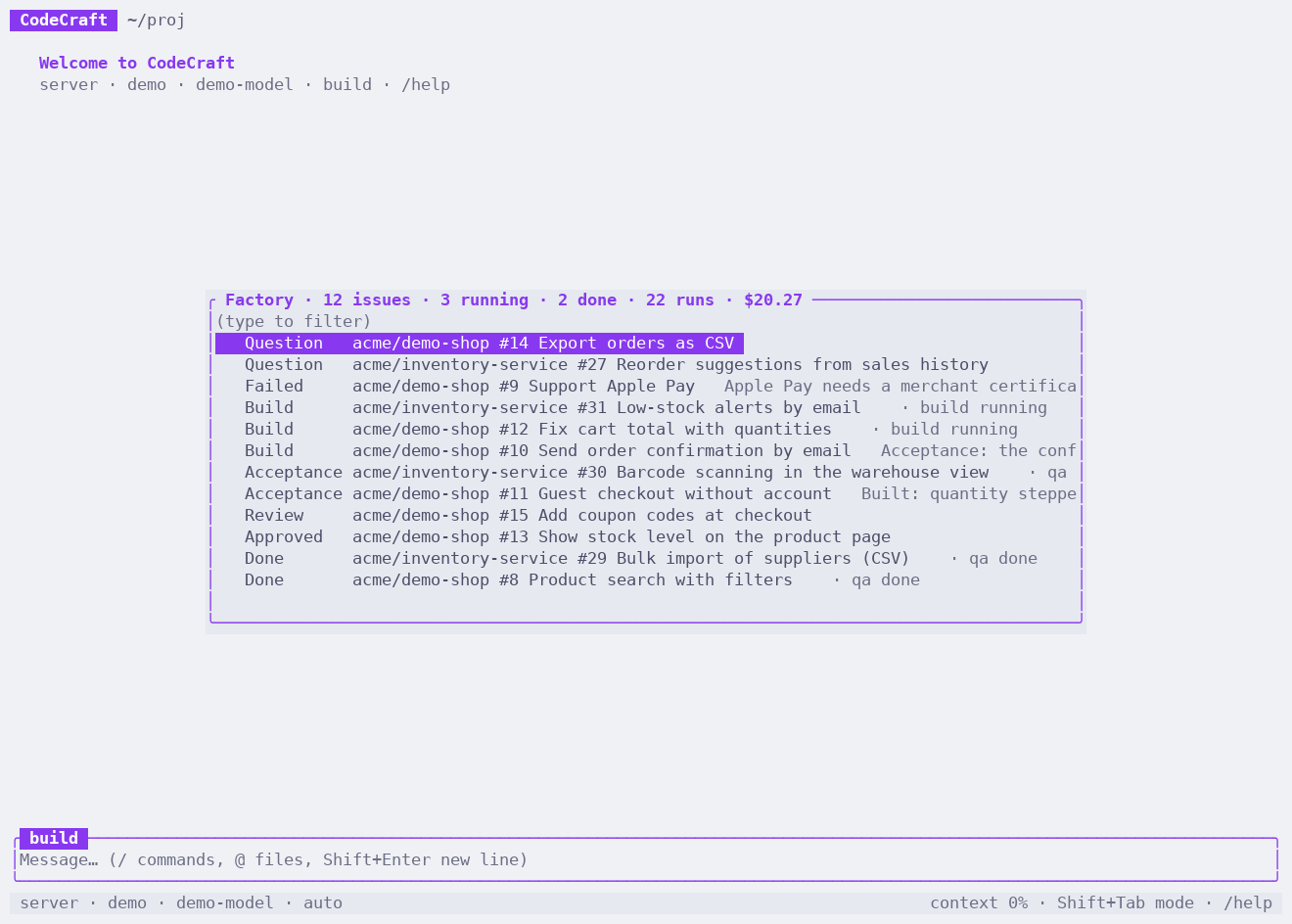
The list is ordered by urgency – questions that wait for your answer, then failures, then running builds and acceptance runs, then everything else – with the latest run of each issue and the cost in the header. Pick an issue and its actions appear:

- Open the chat of a run – review, build or acceptance – as a remote chat, to read how the agent decided or to answer its question.
- Merge the pull request of a finished issue – merge, squash or rebase – exactly like the merge button in the web interface, including the check that it is the issue's own branch.
- Close the issue with a comment, restart it at the review, the build or the acceptance, or remove it from the board. Issues with a running phase offer no restart, as in the web interface.
/factory checkasks the factory to look for new issues right now instead of waiting for the next poll.
Planning chats and the per-repository settings stay in the web interface for now; what you do all day – answering questions, merging, restarting – is a few keystrokes away.
Installing the client#
The Docker image ships static binaries for Linux x86_64, aarch64 and riscv64, and the server offers them for download (Settings → Account). On other platforms, cargo install --locked --git https://git.familie-zink.org/zink/codecraft codecraft-cli builds it from source; macOS and Windows binaries are on the list.
Automations#
An automation is an agent that starts on a schedule – a dependency check every morning, a security review of the last day's commits, a TODO report on Fridays.

The instructions are a Markdown file (.codecraft/jobs/<name>.md, only the prompt). Name, schedule, mode, model and limits are set in the UI, with a graphical schedule editor – every few minutes, hourly, daily, on weekdays, monthly, or a cron expression, with the next runs shown in your time zone. New automation creates the file from a template or blank and opens an editor with an assistant chat. You can also simply ask an agent in any chat to set one up with the schedule tool. Every run is a normal chat session, so you can read it and continue it.
Webhooks start an automation from outside, for example on every push. The request is checked with a shared secret or a Gitea/GitHub HMAC signature, and its JSON payload is handed to the agent.
The software factory#
Now the big one. The factory turns issues on your Git forge – Gitea, GitHub or GitLab – into reviewed, built, accepted and merged changes. Agents do the work. You decide at the points that matter: when an agent has a question, and when a pull request is ready to merge.

You find it as Factory in the sidebar. Every chat it creates lives in the sidebar folder Factory, so you can open and read any phase at any time.
The life of an issue#
You give an issue the label factory (the name is configurable). From then on:
issue + label "factory"
   |
   v
 review --> question   (the agent asks in the issue; you answer, it continues)
   |   \--> rejected   (not buildable as written)
   v
 approved --> building --> qa (acceptance) --> done --> PR merged --> version + tag --> closed
                 ^             |
                 +-- rework <--+    (up to N rounds, then failed)
Each phase is a normal CodeCraft chat in the sandbox. The agent's final answer ends with a JSON result that the factory parses; everything else is done by the server, not by the agent.
1. Review. An agent reads the issue and the repository and decides: approved, question or rejected. A question is posted as a comment in the issue, and the factory waits for your reply and then restarts the review automatically. Rejected means the issue cannot be built as written. The reviewer also writes acceptance scenarios – concrete things someone can check in the running app. These scenarios are stored in the factory's database and are never shown to the builder, so the build cannot be tuned to the test.
2. Build. The builder works in its own git worktree on the branch factory/issue-<n>. The server commits, pushes (never forced) and restores the spec file; the agent does not get to rewrite history or touch the forge.
3. Acceptance. A different agent checks the pushed branch in a clean checkout against the scenarios. The repository's .factory/setup.json tells it how to install and start the app:
{
  "install": "npm ci",
  "start": "npm run start",
  "url": "http://localhost:8080"
}
Each scenario ends as pass, fail, unverified or out_of_scope. The verdict comes from these results, not from the model's opinion – and a run without a single pass or fail counts as failed. On pass the factory opens the pull request (unless one is open) and comments a result table in the issue.
4. Rework. On fail, the issue goes back to the build with the findings: that is a rework round. By default there are two of them per issue; after that the issue is marked failed instead of looping forever, and you are notified.
5. Done, merge, version. You review the pull request in the factory – diff and description – and merge it there. The factory then pulls the merge, gives the issue its version, commits VERSION, pushes an annotated tag, comments on the issue and closes it.
Issue text is treated as data and never as instructions for the factory itself, and the factory area is separate from your workspace: repositories are cloned into their own folder, and agents never see the forge's API token.
Small steps: scope and prerequisites#
A big specification is not built in one huge run. An issue body can contain a few lines the factory understands:
Spec: docs/specs/shop.md
Scope: M2.3 – Quotas (spec section 12)
Prerequisite: M2.2 – merge it first, then start this issue.
With Spec: and Scope: lines, review, build and acceptance restrict themselves to that deliverable. Without a Scope: line the review picks the first unbuilt milestone of the spec. Prerequisite: names what must be merged first, because later issues build on earlier ones.
Planning with a model#
Writing good issues is the hard part, so the factory has three planning chats that end in a list of issues you can edit before anything is filed:
- Spec chat (New project): works out a specification with you by interviewing you step by step – goal, users, flows, edge cases, technology, what is out of scope, how to check it works – and creates the repository with
docs/specs/<name>.md, the factory setup and the first issues. - Plan a feature: you describe a feature or a bug; the model asks questions, checks how it fits the existing code and ends with issues – title, description, scope, prerequisites.
- Cut a milestone: the model splits one milestone of the spec into numbered deliverables (
M2.1 – …,M2.2 – …), small enough for one agent to build and check in about an hour.
Create issues shows the proposal for editing and files it on the forge. The issues get the factory label only if you tick Start right away; by default you start them one after another yourself.
Versions and releases#
Every merged issue raises the version of the repository, starting from the highest vX.Y.Z tag:
- a deliverable of a milestone raises the patch number (0.0.1, 0.0.2, …);
- the last open deliverable of a milestone (
M<k>.<n>) raises the minor number and resets the patch – milestone 1 complete means 0.1.0; - issues without a milestone (bugs, features) raise the patch number.
The factory writes the VERSION file, pushes the tag and closes the issue. The Release button turns the current version into a proper release, say 0.x to 1.0.0. It builds what .factory/release.json describes – a Docker image for amd64 and arm64 pushed to your registry, a source zip, extra files by glob, shell commands – tags it, and creates the release on the forge with notes from the git log and the files attached (Gitea and GitHub).
Several projects, one board#

The overview works for every repository at once, or for a single one: pick it in the dropdown and the tiles, the board, the runs and the releases follow. The choice is remembered. Per repository, a parallel runs limit decides how many phases may run at the same time (1 to 4), which is the right lever when you want reviews to proceed while an acceptance run is still going.
Settings per repository#

Each repository is configured under Factory → Settings: forge connection and token, the label, parallel runs, who may file issues (default: only the token's owner), the number of rework rounds, and then, per phase:
- the model – a cheap, fast one for review and acceptance, a strong one for the build, or three different providers;
- the agent – CodeCraft's own, or Claude Code;
- the permission mode, timeout and the number of tries on technical failures;
- the skills that are switched on for every chat of that phase (CodeCraft agent), so the builder can carry a
frontendskill while the acceptance agent carriescode-review; - extra instructions that are added to the phase's prompt.
Failed or rejected issues can be restarted at any phase from the board, finished ones are closed with a comment, and an issue that has been deleted on the forge disappears from the board by itself.
Re-creating software: the clean-room factory#
The factory has a second way in, and it is the one that makes it more than an issue processor. Recreate software is for projects of the form: this program exists, and I want my own, new, independent version of it.
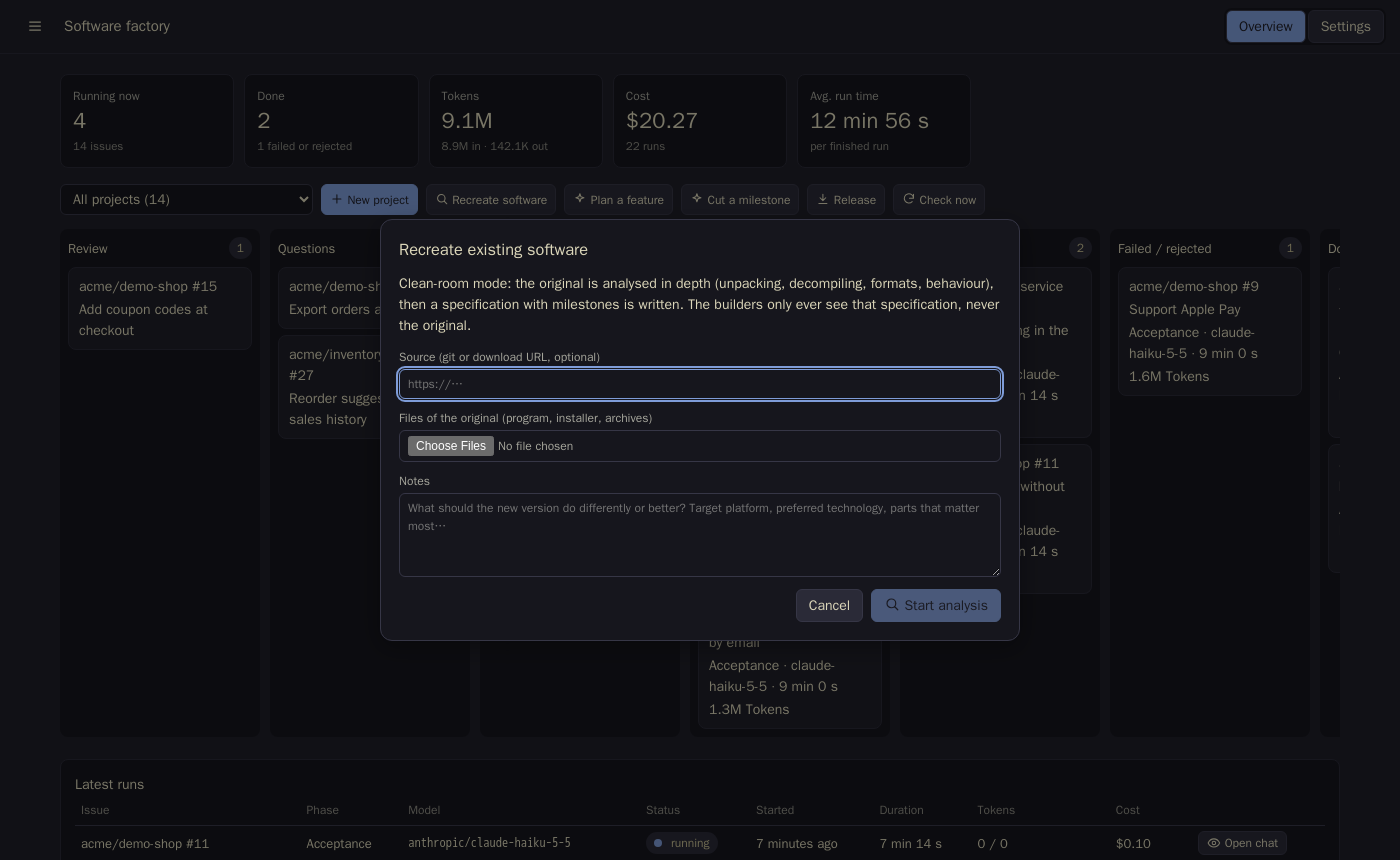
It works in two strictly separated halves:
- The analyst. An analysis chat – the craft agent in deep mode, with the recreate skill – gets the original and works through it without waiting for you: it fetches and unpacks everything, identifies every file, and then analyses exhaustively. With the source at hand it reads it; with only binaries it runs
binary_infoanddecompileon every executable and library. It covers the main loop, every screen and command, all rules and algorithms with their exact constants, tables and texts, file formats down to the byte layout, configuration, persistence, error handling, timing and protocols. It keeps a coverage list of every file and function group with its status – understood, partly, unknown – and keeps going until nothing important is open. - The specification. The analyst writes a
spec.mdthat is the only input for the builders: behaviour with acceptance criteria, data formats, texts and constants that must match, technology with reasons, what is out of scope – and a milestones section, from a project skeleton with a test harness (M0) through the first small useful version to a wrap-up. The spec contains no decompiled code, no decompiler-generated names and no addresses. Before the analyst is done, it audits its own spec against the coverage list and the original, closes gaps and checks that nothing is copied.
The separation is physical, not a promise in a prompt. The original, the analysis and the notes stay in the private draft folder of the analysis chat and are never published. The new repository is created with the specification only. The review, build and acceptance agents – everything that touches the new code – never see the original.
You review the spec with the analyst in the chat. When it is right, Create project files the repository without starting any build; you then use Cut a milestone on M0, M1, M2 … and release the issues one after another, exactly like any other project.
Staying informed#
The factory tells you when it needs you. Web push notifications arrive for finished reviews, builds and acceptance runs. On top of that, a Telegram message is sent when an issue gets a question from the review, or fails – build blocked, build or acceptance failed, rework limit reached – in the language of your web interface and with a link to the issue. It can be switched off, and a night mode (22:00 to 06:00 by default, adjustable) holds back everything that is not a direct answer to you.
More integrations#
- Telegram. Connect your own bot (Settings → Account → Telegram) and use CodeCraft from your phone's chat app: sessions, modes, models, approvals with buttons, photos and files.
/helpin the bot lists the commands. A switch for the factory alerts and the night mode live there. - API tokens with full or read-only scope for scripts and the terminal client.
- Prometheus. Set
server.metrics_tokenand scrapeGET /metricswithAuthorization: Bearer <token>– requests, errors, tokens, cost and time per model, provider status, sessions, pending permissions. - JSON logs.
CODECRAFT_LOG_FORMAT=jsonwrites one JSON object per line. - Backups. Daily at 03:00 into
/data/backups(the last 30 are kept), optionally copied to any S3-compatible bucket – AWS, MinIO, Garage, Backblaze B2, Hetzner. In Settings → Audit you create one on demand, download it, or restore one – a stored backup or an uploaded zip, for example to move to another server. The current state is backed up first, then CodeCraft restarts with the restored data. - Health.
GET /api/healthreports status, version and commit for monitoring.
Users and security#
Local accounts use Argon2 password hashes, and single sign-on via OpenID Connect works with Authentik, Authelia, Keycloak and friends, with optional admin and access groups. Admins manage providers, MCP, permissions, users and shared folders and see all statistics; users see their own sessions and statistics. Every user works in <workspace>/<username>. An audit log records sign-ins, permission changes and configuration changes.
Statistics#
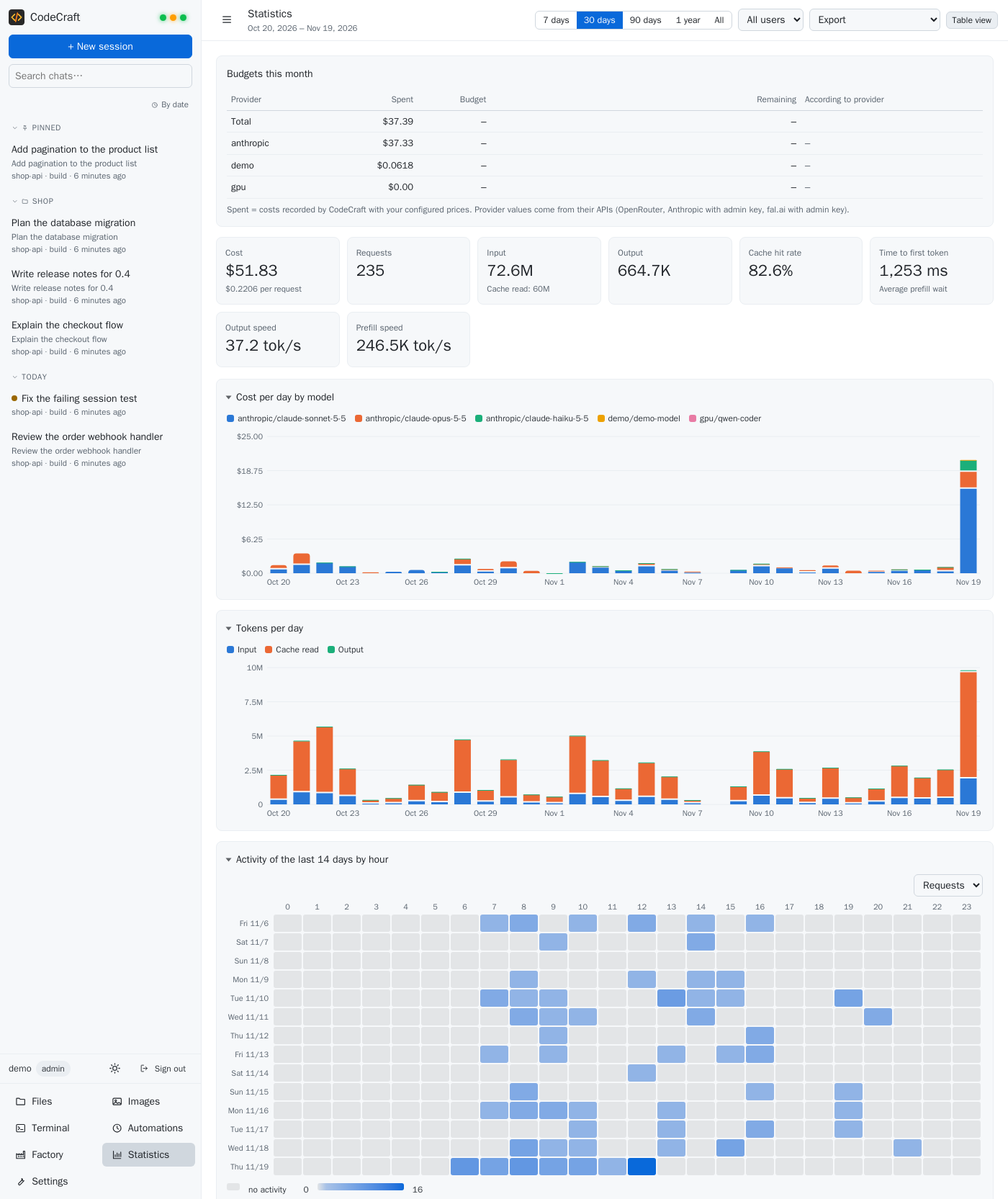
Every model request is stored with input, output and cache tokens, time to first token, prefill and output speed, and its cost at the price configured at that moment. The dashboard shows totals, cost per day by model, tokens per day, an activity heatmap of the last 14 days, and tables per model, provider, mode, user and session. An optional push notification brings the daily cost summary every evening, and the factory's own KPI tiles show what its runs cost.
Themes#
Pick a base theme in Settings → General and switch light, dark or auto – auto follows the system – there or with the button in the sidebar. Every base theme has a dark and a light variant. The same chat, in every one of them:
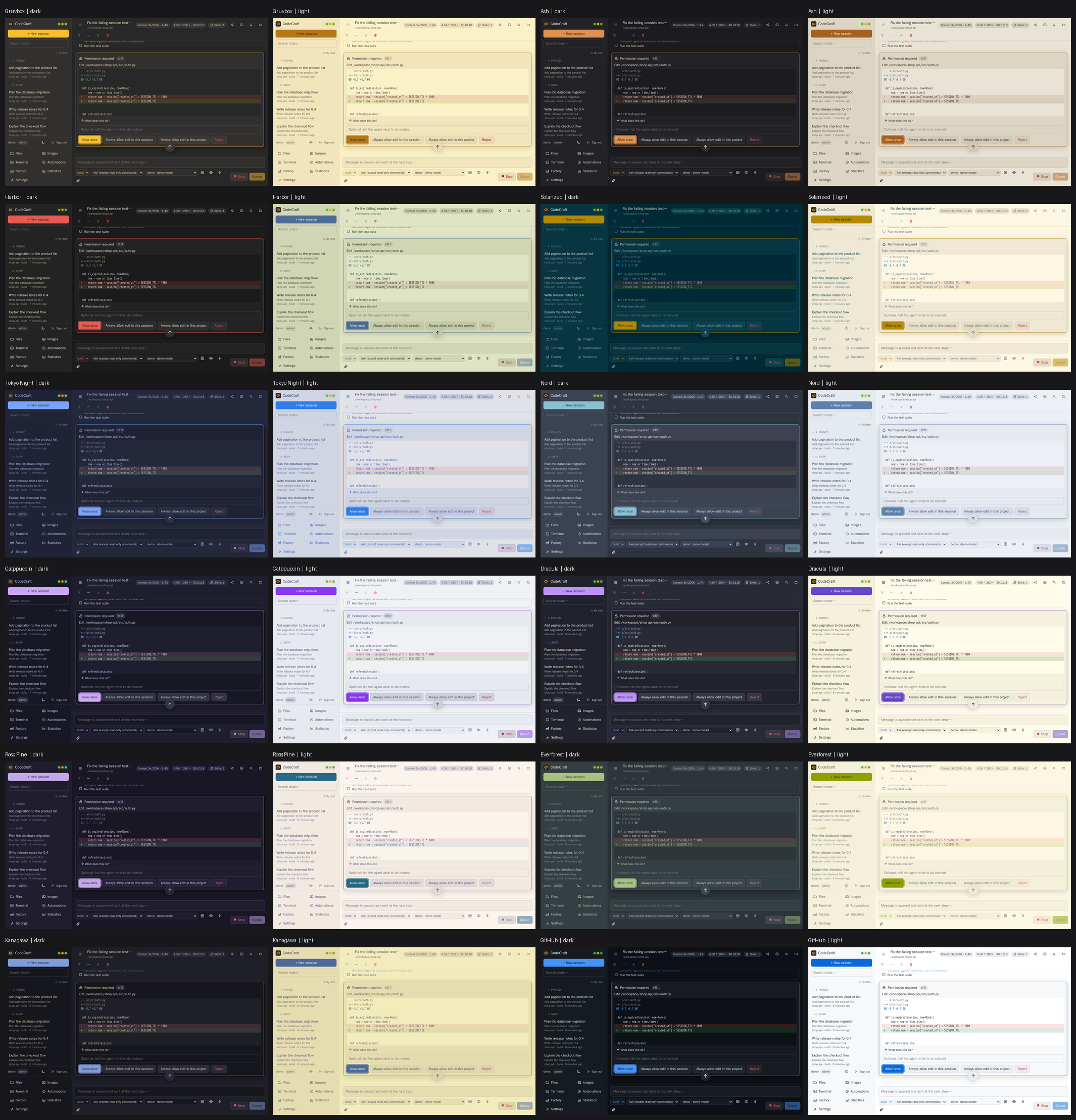
The palettes come from established editor themes – Gruvbox, Solarized, Nord, Catppuccin, Dracula, Tokyo Night, Rosé Pine, Everforest, Kanagawa, VS Code, GitHub, One, Harbor, Coffee – plus two original ones (Ash and Tintenblau). Licences are listed in the README. A theme is a CSS file of variables for surfaces, text, accents, diffs, syntax colours and the browser bar; charts use palettes validated for colour-vision deficiencies. Adding one means copying a pair of CSS files and registering it in two places. The terminal client uses the same palettes, in true colour.
Installation with Docker#
This is the complete installation of the published image. You need Docker with Compose; the image is available for amd64 and arm64.
1. Get the files#
mkdir codecraft && cd codecraft
curl -fsSLO https://git.familie-zink.org/zink/codecraft/raw/branch/main/docker-compose.release.yml
curl -fsSL --create-dirs -o docker/seccomp-sandbox.json \
  https://git.familie-zink.org/zink/codecraft/raw/branch/main/docker/seccomp-sandbox.json
curl -fsSL -o .env https://git.familie-zink.org/zink/codecraft/raw/branch/main/.env.example
2. Edit .env#
At minimum, set WORKSPACE to the directory with your projects, UID and GID to the owner of those files (id -u, id -g) and TZ to your time zone, because automations and timestamps use it. The full list is in the reference below.
$EDITOR .env
3. Start it#
docker compose -f docker-compose.release.yml up -d
docker compose -f docker-compose.release.yml logs codecraft   # one-time setup code
Open http://localhost:8787, enter the setup code from the log and create the admin account. Or set CODECRAFT_ADMIN_USER and CODECRAFT_ADMIN_PASSWORD in .env to create the first admin without the code. Then add a provider under Settings → Providers and models and start your first session.
.env only holds deployment settings. API keys, MCP tokens and everything else you enter in the UI; they are stored in the configuration file, and any string value in it can reference an environment variable as ${NAME}.
4. Install the terminal client (optional)#
With the server running, install the terminal client on any Linux machine – x86_64, aarch64 or riscv64 – straight from your server, and sign in:
curl -fsSL https://<your-codecraft-server>/cli/install.sh | sh
codecraft login      # server URL, user name, password
codecraft            # start in the current folder
The script detects the architecture, downloads the matching static binary from your server into ~/.local/bin and tells you if that folder is not in your PATH. Set CODECRAFT_INSTALL_DIR to install elsewhere. codecraft update keeps it current. On other platforms, cargo install --locked --git https://git.familie-zink.org/zink/codecraft codecraft-cli builds it from source.
What the compose file does#
services:
  codecraft:
    image: git.familie-zink.org/zink/codecraft:${CODECRAFT_VERSION:-latest}
    user: "${UID:-1000}:${GID:-1000}"
    ports:
      - "${BIND_ADDR:-127.0.0.1}:${PORT:-8787}:8787"
    env_file:
      - path: .env
        required: false
    volumes:
      - codecraft-data:/data
      - ${WORKSPACE:-./workspace}:/workspace
      - ${FACTORY_DIR:-./factory}:/factory
    extra_hosts:
      - "host.docker.internal:host-gateway"
    shm_size: "1gb"
    security_opt:
      - seccomp=./docker/seccomp-sandbox.json
      - apparmor=unconfined
      - systempaths=unconfined
volumes:
  codecraft-data:
    name: codecraft-data
A few of those lines deserve a sentence:
codecraft-dataholds all state –config.toml, the SQLite database, backups and the agent's home directory (/data/home, where tools it installs in user space survive updates). Recreating the container keeps it./workspaceis your projects;/factoryis the separate area where the factory clones its repositories.extra_hostslets the container reach model servers on the Docker host – Ollama, vLLM, llama.cpp – ashost.docker.internal.shm_sizeis for Chromium, which craft mode and the browser tool use.security_optgives the bubblewrap sandbox for non-admin users the user namespaces it needs: a seccomp profile that adds exactly those syscalls to Docker's default, relaxed AppArmor and an unmasked/proc. If you are the only user, you can remove those three lines and set[sandbox] mode = "off".
Put TLS in front of it#
By default the port is bound to 127.0.0.1. Installing the app (PWA) and push notifications require HTTPS, so put a reverse proxy with WebSocket support in front, and set auth.public_url in the configuration. A minimal Caddy example:
code.example.org {
    reverse_proxy 127.0.0.1:8787
}
Behind nginx, pass the Upgrade and Connection headers on for WebSockets. Uploads are sent in 8 MB chunks, so the proxy's body limit does not matter; the largest file is set by max_upload_mb (500 by default).
Update, pin, move#
docker compose -f docker-compose.release.yml pull
docker compose -f docker-compose.release.yml up -d
Releases are named vYYYYMM-NNNNN – year and month, then a counter that starts at 00001 every month. Follow latest, or pin one with CODECRAFT_VERSION=v202611-00001 in .env. Admins see a notice in the UI when a new release is out.
Environment variables#
Deployment variables in .env#
These are read by docker-compose.release.yml, and – because of env_file – all of them are also available to the configuration as ${NAME}.
| Variable | Default | Meaning |
|---|---|---|
CODECRAFT_ADMIN_USER | – | Creates the first admin on first start. Without it, the server logs a one-time setup code. |
CODECRAFT_ADMIN_PASSWORD | – | Password for that admin, at least 8 characters; shorter values are ignored with a warning. |
WORKSPACE | ./workspace | Host directory with your projects, mounted as /workspace. |
FACTORY_DIR | ./factory | Host directory of the software factory's clones, mounted as /factory. |
PORT | 8787 | Host port. |
BIND_ADDR | 127.0.0.1 | Host address to bind. 127.0.0.1 means reachable only through a local reverse proxy; 0.0.0.0 publishes it on all interfaces. |
UID, GID | 1000 | User and group that own the project files; the container runs as this user so files keep their owner. |
TZ | UTC | Time zone for cron schedules, timestamps and the Telegram night mode. |
CODECRAFT_VERSION | latest | Image tag for the release compose file, for example v202611-00001. |
CODECRAFT_LOG_FORMAT | text | Set to json for one JSON object per log line (Loki, Elastic). |
Variables inside the container#
You normally leave these alone; they are set by the image and are useful for unusual layouts.
| Variable | Default in the image | Meaning |
|---|---|---|
CODECRAFT_CONFIG | /data/config.toml | Location of the configuration file. |
CODECRAFT_WEB | /app/web | Directory with the built web interface. |
CODECRAFT_FACTORY_DIR | /factory | The factory area inside the container. |
CODECRAFT_CLI_DIR | /app/cli | Directory with the terminal client binaries the server offers for download. |
CODECRAFT_RESOURCES | /app/resources | Built-in skills and slash commands. |
CODECRAFT_GIT_WRAPPER | /usr/local/lib/codecraft/bin | Directory with a git wrapper that adds a co-author trailer naming the session's model to commits agents make (template: server.commit_trailer). |
CODECRAFT_GHIDRA_SCRIPTS | /app/ghidra | Scripts for the optional Ghidra installation (deep mode). |
CODECRAFT_TELEGRAM_API | https://api.telegram.org | Alternative Telegram API base URL, for a proxy or a test server. |
HOME | /data/home | The agent's home: pip, npm, cargo and downloaded tools live here and survive updates. |
RUST_LOG | info | Log level of the server. |
Variables of the terminal client#
| Variable | Meaning |
|---|---|
CODECRAFT_CONFIG_DIR | Where the client keeps its configuration, instead of the default location. |
CODECRAFT_DATA_DIR | Where the client keeps its chat history and data. |
CODECRAFT_SHELL | The shell the client's bash tool uses instead of bash. |
The configuration file#
Everything else lives in one commented TOML file, /data/config.toml, created from config.example.toml on first start. The settings pages edit it in place and keep your comments. Secrets belong in the environment and are referenced as ${NAME}.
| Section | Purpose |
|---|---|
[server] | workspace, default and small model, currency, auto-compaction, subagent limit, mcp_direct_limit, max_upload_mb, metrics_token |
[providers.<name>] | kind = "anthropic" or "openai", base_url, api_key, max_concurrency, models (with prices and fallback) |
[mcp.<name>] | type = "stdio" (command, args, env) or "http" (url, headers) |
[permissions] | allow, ask, deny per tool, with globs such as mcp__*; bash_rules for commands |
[agents.<name>] | modes and subagents: model, tools, max_parallel, prompt |
[auth], [auth.oidc] | session lifetime, public URL, single sign-on |
[sandbox] | shell sandbox for non-admins: auto, always, off |
[backup], [backup.s3] | daily backups, retention, S3 target |
[images] | fal.ai key, budget, models with their stage (preview or final) |
[craft] | headless browser, screen widths, clean room |
What is next#
CodeCraft is early, but in daily use. On the list: terminal client builds for macOS and Windows, MCP OAuth, resources and prompts, and the OpenAI Responses API. The source, the changelog, the releases and the issue tracker are in the CodeCraft repository, and the whole thing is MIT-licensed – the theme palettes keep the licences of their origins.